
I like my kernel simple and lean, with just the configuration I need — kernel modules disabled, no initramfs, and all drivers and firmware built into the kernel image itself. Why, I would even forego sophisticated bootloaders like GRUB, relying instead on EFI stub to load my kernel directly from the UEFI firmware during the boot process. In my most recent setup, however, I decided to set up a LUKS2-encrypted btrfs filesystem on my main disk, and this forced me into having an initramfs.
So what is an initramfs? Basically, when the kernel starts up, it may be provided with an “initial RAM filesystem” in lieu of accessing the root filesystem from disk. This pseudo root filesystem is just a single archive with a script called “init”. The archive may include additional binaries and libraries that are needed by this init script early in the boot process. In my case, for instance, I needed to use the cryptsetup utility to ask for a password and unlock the disk, in order for the kernel to gain access to it. There is simply no other way for the kernel to access the decrypted contents of the disk and begin the service initialization process 1.
Tools like dracut can help you create an initramfs, but the results tend to be ugly and bloated as they cater to the common denominator. To avoid this, I decided to create my own initramfs. This turned out to be a rather simple process.
Conceptually, there are two parts to it. First, we need an init script that acts as the entry point and executes during the early boot process. Second, we need a build script to create an archive file with this init script, along with a filesystem hierarchy structure and required binaries and libraries.
In the init script, I used a busybox binary to provide the shell.
cryptsetup luksOpen "$ROOT_DEV" "$CRYPT_ROOT"`The snippet above is at the heart of the script — it gets invoked up to 3 times in case the user enters the wrong password — with additional logic to mount the btrfs filesystem and resume correctly from hibernation. The final step is to switch to the full-fledged root filesystem and start the real init process from files on disk. One perk of this setup is that I can inject additional goodies into the script. Observe that I set the keyboard backlight and display brightness as part of the script. What’s more, I even managed to coax Claude into churning out a small binary called gamma to set the display to a ‘warm’ color from the very beginning.
The job of the build script is straightforward: bundle together all the binaries needed by the init script, along with the libraries they depend on (if dynamically linked). These binaries are busybox, gamma and cryptsetup. Of these, the first two are statically linked and require no additional files. For the latter, the script includes some logic to recursively scrape the system for the required libraries, placing them in the right directories and linking them just as they are on the live system. The final step is to convert the working directory into an archive using cpio and compressing it with zstd (which has support built into the kernel). No kernel modules are required to be loaded since drivers for display, disk and other essential components are built into the kernel itself.
Technically, I could use the GRUB bootloader to decrypt the disk for me before executing the kernel, but until the recent version 2.14, GRUB did not support the fast and modern Argon2 key derivation function.
For a static blog like this one, supporting comments from readers is not easy. The site is entirely generated ahead-of-time and published to an Amazon S3 bucket, made accessible over Amazon CloudFront. Without a compute instance, there is no way to store and retrieve dynamic content like comments. For the most part, I have considered the absence of comments to be a “feature”. Recently, however, I decided that reader engagement wouldn’t be so bad after all.
And so, as of yesterday, it is now possible to comment on posts on this blog. I eschewed solutions like Disqus because they pull in cruft I don’t care for, and I avoided systems like Staticman as they’ve become fairly heavyweight over time.
Instead, I built a custom solution using a free version of Cloudflare worker. The server-side code is less than 200 lines long (all under the worker sub-folder in my public repository). The server-side code uses a bot account with GitHub to post incoming comments as pull requests to the repository. Once I review and approve a request, it gets merged into the repository and triggers a fresh build and deployment of the site. To limit spam, the server-side code has some tricks up its sleeve, including a spam check with Akismet and an in-built honeypot to catch drive-by spammers.
On the client-side application, I render the comments for each post along with a form to post new comments. All existing comments are organized as a single new section, but the frontmatter of each comment indicates which post it belongs to. The rendering logic filters by this information to only render relevant comments in linear chronological order. New comment submission is, of course, handled using JavaScript, and includes some in-built speedbumps to reduce spam.
While the current approach works reasonably well in my opinion, a key point of friction is that comments don’t show up for some undefined period of time until they are approved (or never, if the comment is rejected). Readers submitting comments see a message indicating that the comment has been submitted and is pending approval, but don’t see their own comment rendered on the page until much later.
dinky.dev is a web application designed to act as a combination of task list, notes app, library manager and project tool (albeit a very simple one). dinky is built on top of the React framework and is an entirely client-side application: all user data is stored in a single JSON file stashed away in the browser’s LocalStorage. To enable synchronization of data across user devices, it allows users to bring their own Amazon S3 bucket to upload data into.
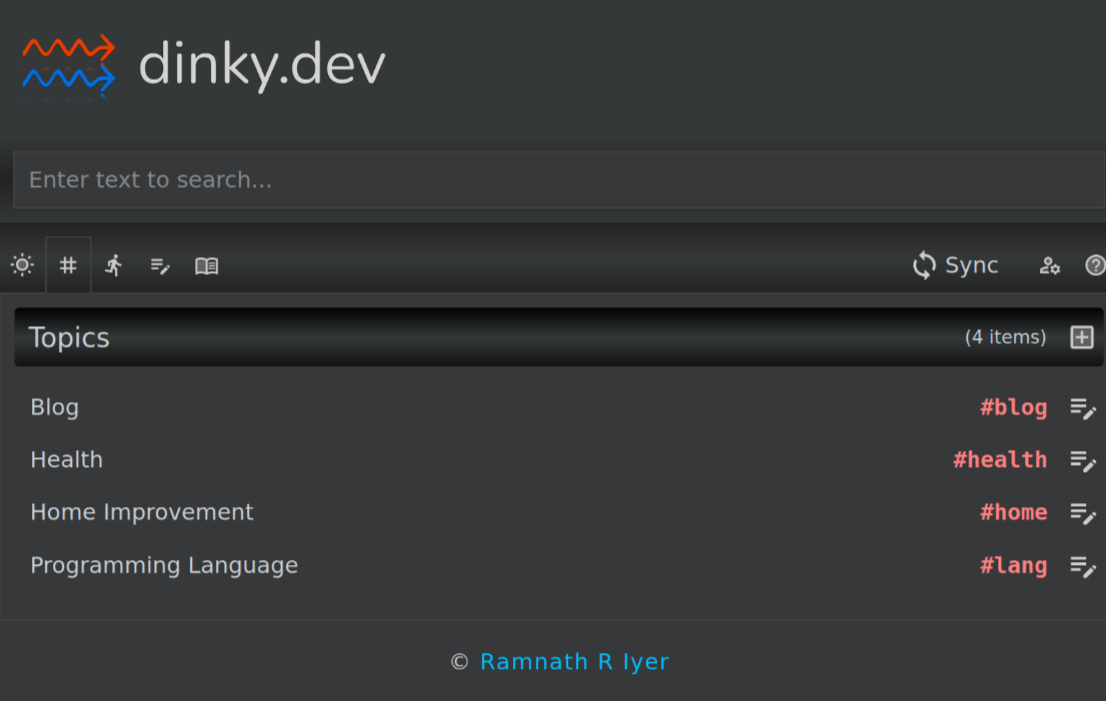
Its user guide does a fairly thorough job of explaining what you can do with it, and how to set it up. Today, however, I wanted to walk through its source code in some detail and highlight interesting parts of its design and architecture.
The main entry point of the application is at index.tsx. As you can see here, the source is entirely in TypeScript and JSX (hence the tsx extension). Subsequent code is split into three areas within respective folders: views, pages and models. Views constitute standalone modules that may be rendered wherever needed. The App view is the first one to be rendered by the index.tsx entry point, and it declares additional views to be rendered as part of that process. For example, the SearchBox view is rendered by the App view; this is why the homepage shows a search bar close to the top. Pages are technically nothing more than views rendered in the central content area. Which ‘page’ to render is determined by the router in PageContent. Models constitute the core data structures and algorithms of the application. For the most part, data structures are implemented as interfaces, instantiated as needed by the application. For instance, AppState is a core data structure that is hydrated in App.tsx when data is imported from a file, when data is synced from the cloud and when the web application is loaded. Furthermore, many data structures are declared as types that happen to be various combinations of interfaces. For instance, the Task type is a union of DataObj, Creatable, Deletable, Updatable, Syncable, Schedulable, and Completable. This method works very well as long as each of these interfaces declares distinct and non-overlapping defining attributes.
As a general rule, the application renders current state; actions taken by the user update the current state and refresh the application, which in turn renders the (updated) current state. Exceptions to this rule are updates to Amazon S3 (pushData, pushEvents) and updates to the JSON file in local storage (saveToDisk).
Staying offline-first has been a key design principle for the application. This principle means that all updates are local, and any synchronization to the cloud is optional and on-demand. Certain quality-of-life features have been added along the way. For instance, initially, no synchronization to the cloud occurred unless the user explicitly requested it (synchronization meant that the entire JSON file was downloaded, merged, and re-uploaded); while this worked fine for pulling data from the cloud, it didn’t work as well for pushing data to the cloud, especially when the user forgot to sync on some device and needed the updates elsewhere. This was soon fixed with the auto-push option that made a best-effort attempt to push individual items the cloud upon each save.
The use of conflict-free replicated data types (CRDTs) makes it particularly straightforward to deal with data syncrhonization. Each data object is timestamped, and the algorithm for merging data objects into the store is, for the most part, “keep the last updated version”. This heuristic works well because the data objects are fairly granular (such as a single task). An interesting side-effect of this approach is that it is important to tombstone and retain deleted items for several days until all devices have had time to synchronize, otherwise you may end up reviving deleted items as if they were new.
An easy-to-use text interface has been another key design motivation. A text interface in this context means that I can simply type what I want into a single field. For instance, typing Evaluate Like A Grandmaster | Eugene Perelshteyn; Nate Solon followed by Enter leads to an entry like the one below. In a similar vein, pasting multi-line text into the task entry box results in multiple tasks being created. Entering a task automatically prompts for the next one (and so on).

Of course, there is a lot of scope for improvement. With 1000+ items, loading the library can be a tad sluggish the first time. Switching from LocalStorage to IndexedDB might be a step forward. The application could also benefit from creative theming — I opted for function over form.
I wrote a little shell script to scratch an itch: git-squash-paths.
Its README.md file on GitHub explains my motivation behind the writing this script.
What the exercise highlighted to me, however, was that we lack a notion of strong portability of patches across contexts. Strong portability would mean that we’re able to safely re-arrange patches to rebuild context in different ways. But patches tend to be highly context-dependent today, both syntactically (e.g. diffs depending on adjacent lines) and semantically (e.g. update to X applying only if Y has a specific definition). Furthermore, dependencies are loosely managed: changes in the same patch are implied to be related (but may not be), and changes across patches may or may not be truly dependent on each other (i.e., requiring a specific order of update).